Voice
Voice is Supervertaler’s voice command and dictation engine. It lets you control any application on your computer – Trados, memoQ, Word, or anything else in the foreground – using your voice, while Supervertaler Workbench stays running in the background.
Open it via the 🎤 Voice top tab in Workbench, the tray icon’s 🎤 Open Voice entry, or press Ctrl+Alt+O to toggle Always-On listening from anywhere on your computer.
Three modes
Always-On listening
Always-On runs a continuous microphone stream in the background. When you speak, Voice detects speech via amplitude-based VAD (voice activity detection), captures the utterance, and hands it to Vosk, the offline speech recogniser Always-On uses.
Vosk only emits text for phrases in your command list – anything else is silently dropped as [unk]. So Always-On is “commands only” by design: you can leave it on all day, talk to colleagues, take phone calls, etc., and only matching command phrases will trigger actions. Running text is dictated with push-to-talk (below), not with Always-On.
To start: click ▶️ Start Always-On in the Voice tab, or press Ctrl+Alt+O from any application.
To stop: click ⏹️ Stop Always-On or press Ctrl+Alt+O again.
Voice also keeps a microphone icon in the system tray: grey while Always-On is off, red while it is listening. Click the icon to start or stop Always-On; right-click it for ▶ Start Always-On and 🎤 Open Voice.
Focus matters: Voice sends keystrokes and text to whichever window is currently focused. After starting Always-On, click into Trados, Word, or your browser before you speak.
Push-to-Talk dictation (Ctrl+Shift+Space)
Press Ctrl+Shift+Space (the default dictation hotkey – ⌘⇧Space on macOS; works globally, from any application, and is configurable in Settings → Keyboard Shortcuts) to record a single utterance for free-form running-text dictation. A small ”🎤 Listening…” toast appears in the top-right of the screen so you know the recording is live; it goes away again when you stop. Recording stops when you release the key (in hold-to-talk mode) or when you press the hotkey again (in toggle mode). The speech is transcribed on your own computer with faster-whisper, and the text is typed at the cursor position.
Always-On + push-to-talk coexist. If Always-On is running when you trigger push-to-talk, Voice pauses the always-on listener for the duration of the recording, runs the dictation, then resumes Always-On automatically. So you get free continuous Vosk command recognition all day plus a hotkey for occasional running-text dictation, without having to manually toggle Always-On off and on.
Push-to-talk modes (the Mode dropdown in the 🗣️ Dictation (push-to-talk) group):
- Hold-to-talk (default, recommended) – hold the hotkey to record, release to stop
- Toggle – press once to start, press again to stop
On Windows, Voice detects when you release the global hotkey, so hold-to-talk works from any application. On macOS and Linux, releasing the global hotkey isn’t detected yet: press it again to stop, or let the maximum recording duration end the recording.
Push-to-Talk for commands (Ctrl+Alt+V) – v1.10.193
Press and hold Ctrl+Alt+V (the default; configurable in Settings → Keyboard Shortcuts) to temporarily activate the command listener for the duration of the hold. Release the key to stop it again. Works globally, from any application.
This is a third mode that sits between the two above:
- Always-On is the toggle version of command listening – mic open continuously, listens for commands all day.
- Command Push-to-Talk is the hold version – mic open only while you hold the chord, so the rest of the time the microphone is genuinely free for other applications.
When to use this mode:
- You also use an external dictation app (Wispr Flow, Dragon, macOS Dictation, etc.) for running-text dictation and don’t want Supervertaler’s always-on mic competing for the audio stream.
- You only need voice commands occasionally – pressing a hotkey when you want to issue one is less intrusive than leaving the mic open all day.
- You’re on a laptop battery-conscious about the always-on Vosk model running 24/7.
Coexistence with the toggle mode: if Always-On is already running when you press Ctrl+Alt+V, the hotkey is a no-op – it won’t restart what’s already going, and releasing it won’t stop Always-On either (we never touch what we didn’t start). So the two modes don’t fight each other; you can use whichever feels right for the moment.
Platform notes: release detection on Windows uses GetAsyncKeyState polling (same mechanism as the dictate PTT). On macOS / Linux, the listener stays running until you press Ctrl+Alt+O or click ⏹ Stop Always-On – it doesn’t auto-stop on key release. Lift to a manual toggle there.
Pause Always-On for external dictation – v1.10.246
The opposite trade-off to Command Push-to-Talk: keep Always-On running permanently, but have it step off the microphone for the moments you’re dictating into an external tool (Wispr Flow, Dragon, macOS Dictation, …). You bind one of your keys – the same key you press to start your external dictation – and Always-On pauses while it’s engaged, then resumes. So your voice commands stay available all day, and the two never fight over the mic.
The key is recorded, not typed, so it works with keys you can’t express as text – including media keys like fast-forward, which many people use to trigger their dictation tool.
To set it up – Voice tab → ⏸️ Pause Always-On for external dictation:
- Click ⏺ Record key, then press the key you use for your external dictation tool. The label shows what was captured (e.g. Media Next / Fast-Forward).
- Choose a mode:
- Hold (default) – Always-On pauses only while you hold the key and resumes the instant you release it. Pair this with hold-to-talk tools like Wispr Flow: hold your key → speak → release, and Always-On is live again.
- Toggle – press once to pause, press again to resume. Use this if your tool starts/stops dictation on a single tap.
It works globally (the Workbench doesn’t need to be focused) and the key is observed passively – your external tool still receives it normally. Press detection and release both come from the same low-level hook used by Command Push-to-Talk.
Voice commands
Voice commands execute specific actions when you speak a trigger phrase. They can type text, press keyboard shortcuts, run AutoHotkey scripts, or call internal Workbench functions.
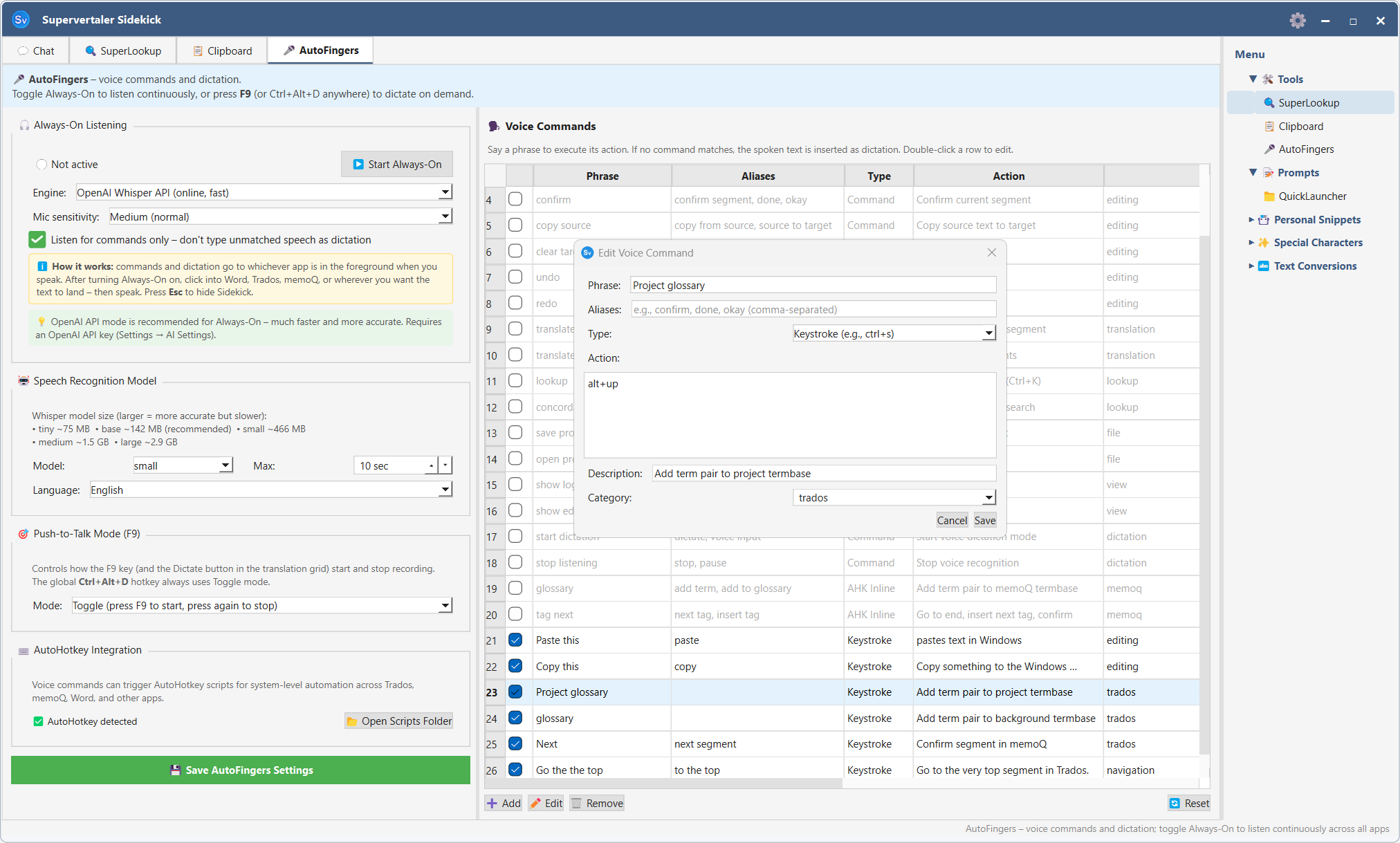
The commands table
The commands table (right side of the Voice tab) lists all your configured commands.
| Column | Description |
|---|---|
| ☑ | Enable/disable checkbox – uncheck to silence a command without deleting it |
| Phrase | The primary trigger word or phrase |
| Aliases | Alternative phrases that also trigger the command |
| Type | Command / Keystroke / AHK Script / AHK Inline |
| Action | What happens when the phrase is recognised |
| Category | Organisational label (Navigation, Editing, etc.) |
Enabling and disabling commands
- Single command – click the checkbox in the first column
- All commands – click the checkbox column header to toggle all at once (enables any disabled, or disables all if all are already active)
- Multiple commands – select rows with Shift+Click or Ctrl+Click, then right-click and choose ✅ Activate or ⬜ Deactivate
Disabled commands are greyed out and are skipped during recognition. Their settings are preserved.
Editing a command
Double-click any row to open the Edit Voice Command dialog. You can change the phrase, aliases, action type, and action value.
You can also select a row and click the ✏️ Edit button below the table.
Adding a command
Click ➕ Add below the table. Choose a command type:
- Command – calls an internal Workbench action (confirm segment, next segment, etc.)
- Keystroke – sends a key combination to the active window. Click into the Keystroke field and press the keys you want to send (e.g. press Ctrl+Enter); the field shows the platform-native symbols (⌘⇧⌥⌃ on macOS, Ctrl+Shift+Alt elsewhere) so you don’t have to translate between platforms.
- AHK Script – runs an AutoHotkey v2 script file
- AHK Inline – runs a short AutoHotkey v2 snippet directly
The Edit Voice Command dialog includes a context-sensitive cheat sheet below the Action field that updates with the Type dropdown – it explains the press-to-capture editor for Keystroke commands, lists common AHK patterns for AutoHotkey Code, names the available internal actions, etc. So you don’t need to memorise the full reference up front.
Removing a command
Select the row and click 🗑️ Remove, or select multiple rows and remove them together. 🔄 Reset restores the default command list.
Edits take effect immediately under Vosk
Adding / editing / removing / disabling a command immediately rebuilds Vosk’s recogniser grammar in the background – you don’t have to stop and restart Always-On to “teach” Vosk a new phrase. The status bar briefly shows 🔄 Vosk grammar refreshed (N phrases) to confirm the swap took effect. The next utterance you speak will use the new grammar.
Settings
All Voice settings are in the left half of the 🎤 Voice tab, from top to bottom:
Microphone
The Microphone dropdown picks the input device for both Always-On and push-to-talk. System default follows whatever microphone your operating system has selected. If a chosen microphone is unplugged, Voice falls back to the system default. The choice is saved as soon as you make it.
🎤 Voice commands (Always-On listening)
- ▶️ Start Always-On / ⏹️ Stop Always-On, with a status line (⚪ Not active, 🟢 Listening for speech…, 🔴 Recording…, ⏳ Processing…).
- Mic sensitivity – the amplitude threshold used to detect speech onset:
- Low (noisy) – raises the threshold; ignores quiet background sounds but may miss soft speech
- Medium (normal) – default; works well in a typical home office
- High (quiet) – lowers the threshold; captures quiet voices but may trigger on background noise
- Push-to-talk hotkey – shows the Command Push-to-Talk chord (Ctrl+Alt+V by default). Click Change in Settings → Keyboard Shortcuts to rebind it.
There is no engine choice here: Always-On always uses Vosk – offline, free and with almost no CPU load, which makes it both faster and more accurate for commands than a Whisper model. The first time you start Always-On, the small English Vosk model (~40 MB) auto-downloads to vosk-models/ in your data folder. Same for the small Dutch model when your project’s target language is Dutch. Models are cached after the first download.
⏸️ Pause Always-On for external dictation
See Pause Always-On for external dictation above.
🗣️ Dictation (push-to-talk)
Push-to-talk dictation always uses faster-whisper, which runs OpenAI’s Whisper speech models on your own computer (offline, free).
| Setting | What it does |
|---|---|
| Hotkey | Shows the dictation hotkey (Ctrl+Shift+Space by default). Click Change in Settings → Keyboard Shortcuts to rebind it – any key works, for example numpad + for one-finger dictation. |
| Mode | Hold-to-talk (default) or Toggle – see Push-to-Talk dictation above. |
| Model | The Whisper model size. Larger models are more accurate but slower to load and transcribe, and need more RAM. |
| Max | The longest single recording, from 3 to 60 seconds (default 10). Speech beyond the limit is cut off and transcribed up to that point. |
| Language | Auto (use project target language) (default) uses the project’s target language. Auto-detect (Whisper picks per utterance) lets Whisper work out the language each time – handy if you dictate in more than one language, but it needs about a second of speech to be reliable. Or pick a language explicitly. |
| Model | Download size | Notes |
|---|---|---|
| tiny | ~75 MB | Very fast, lowest accuracy |
| base | ~142 MB | Good balance (recommended) |
| small | ~466 MB | Noticeably better accuracy |
| medium | ~1.5 GB | High accuracy |
| large | ~2.9 GB | Best accuracy, slow on CPU |
📚 Dictation vocabulary
Helps Whisper spell brand names and technical terms correctly. Common ones (Supervertaler, Trados, memoQ, OpenAI and so on) are built in.
- Custom dictionary – your own terms, separated by commas or new lines: client names, product names, jargon.
- Also bias from your termbases (target-language terms) – adds the target-language terms of every termbase you have ticked in the 🎤 Voice column of the 🏷️ Termbases tab (up to 200 terms per dictation). No termbase is ticked by default; ticking this box takes you to the Termbases tab so you can choose.
- Replacements – fixes for words Whisper keeps getting wrong: enter what it hears under Heard and what you meant under Meant. Use ➕ Add row and ➖ Remove selected to edit the list.
⌨️ AutoHotkey Integration
See AutoHotkey integration below.
Saving
The microphone, mic sensitivity, push-to-talk mode and pause-hotkey settings are saved as soon as you change them. The Whisper model, maximum duration, language and dictation vocabulary are saved when you click 💾 Save Voice Settings at the bottom of the panel.
AutoHotkey integration
AutoHotkey v2 must be installed for AHK-type commands to work. Supervertaler checks for it automatically and shows the result in the ⌨️ AutoHotkey Integration group of the Voice tab.
To verify: the status line in the ⌨️ AutoHotkey Integration group shows either ✅ AutoHotkey detected or ⚠️ AutoHotkey not found.
Click 📂 Open Scripts Folder to open the folder where standalone AHK script files are stored.
Using Voice with Trados Studio
Voice sends input at the Win32 hardware-input level (equivalent to physical keystrokes), which is fully compatible with Trados Studio’s WPF editor. Useful commands to add:
| Phrase | Type | Action |
|---|---|---|
| ”confirm segment” | Keystroke | ctrl+enter |
| ”next segment” | Keystroke | alt+down |
| ”previous segment” | Keystroke | alt+up |
| ”go to top” | Keystroke | ctrl+home |
| ”undo” | Keystroke | ctrl+z |
After creating a command, start Always-On, click into Trados Studio, and speak the phrase.
Global hotkeys
| Shortcut | Action |
|---|---|
| Ctrl+Alt+O (⌘⌥O on macOS) | Toggle Always-On listening |
| Ctrl+Shift+Space (⌘⇧Space on macOS) | Push-to-talk dictation (one utterance) – default, configurable |
| Ctrl+Alt+V (⌘⌥V on macOS) | Command Push-to-Talk – hold to listen for voice commands |
Global hotkeys work on macOS too (via the NSEvent monitor), but require Accessibility permission for whichever binary launched Python – see Keyboard Shortcuts for setup. All hotkeys can be customised in Settings → Keyboard Shortcuts.
On Windows, AltGr counts as Ctrl+Alt. Since v1.10.372, if AltGr+O or AltGr+V types a character on your keyboard layout, you get the character rather than the Voice hotkey – use the left Ctrl and left Alt keys for the hotkeys.