QuickTrans
QuickTrans shows fast machine translations of the selected text from every enabled provider at once. It runs in two ways:
- a global always-on-top popup, summoned with Ctrl+Alt+Q anywhere on your computer; and
- a docked panel inside the Workbench grid – it can sit below, above, or to the right of the grid (beside TermLens), showing the same results inline as you move between segments.
Most of this page describes the popup; the docked panel is covered in The docked QuickTrans panel. The popup is a single-purpose surface – just translations, no chat – and it stays on top of every other window until you press 1–9 / Enter / click to pick a result, or Esc to dismiss.
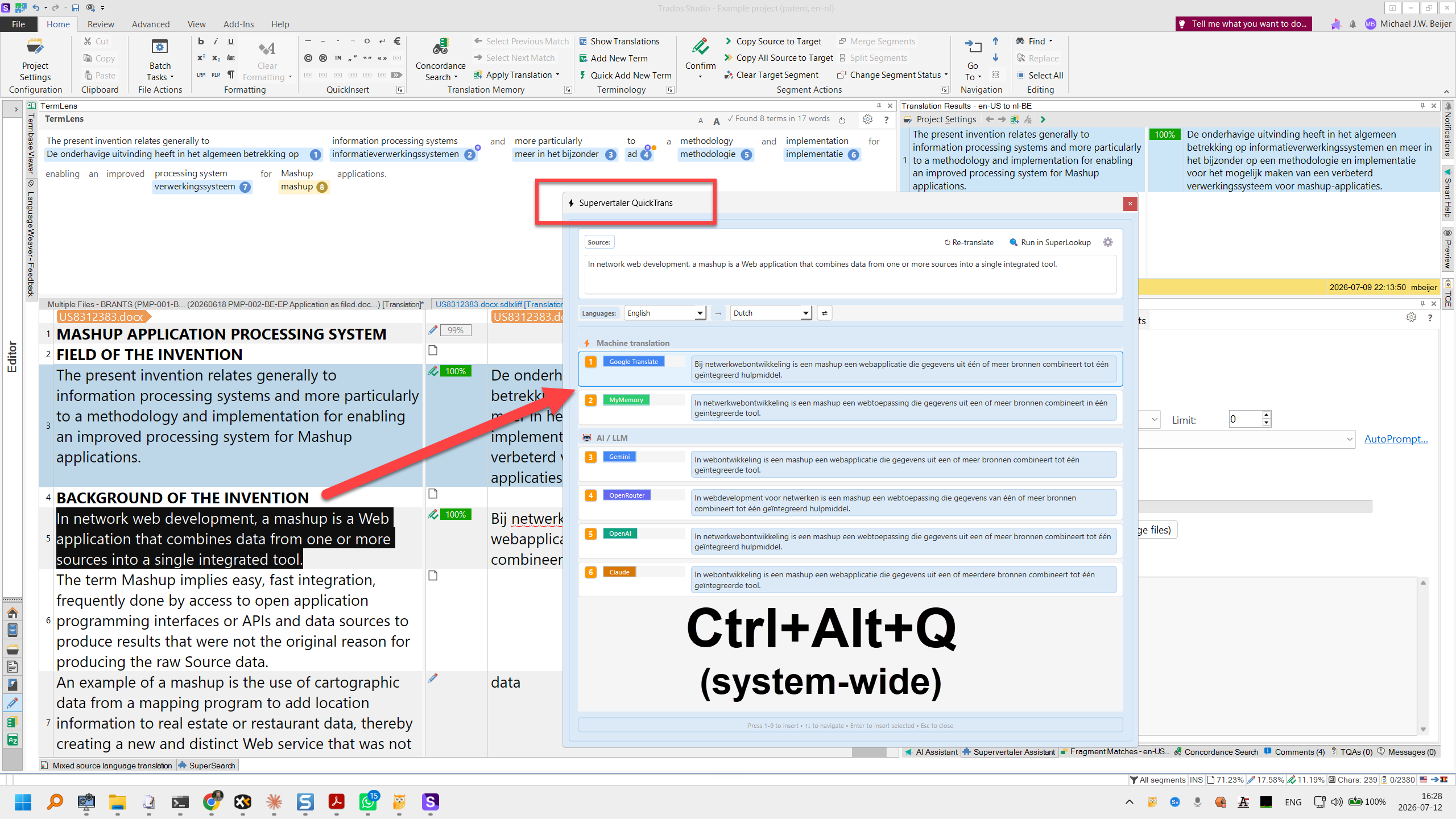
Opening QuickTrans
| Method | Shortcut | Notes |
|---|---|---|
| Global, from any application | Ctrl+Alt+Q (⌘⌥Q on macOS) | Auto-copies the current selection; popup appears with translations |
| In-app, from a Workbench grid cell | Ctrl+Alt+Q | Same chord – Ctrl+Alt+Q is registered both as a system-wide global hotkey and as an in-app QShortcut, so it works wherever you are |
| Grid cell right-click → ⚡ QuickLauncher → ⚡ QuickTrans | Right-click menu | Uses the selected text in the cell (or the whole source segment if nothing is selected) |
After selecting a translation from the global path (Ctrl+Alt+Q from another app), the popup hides itself, returns focus to the source application, and pastes the result over your selection.
Inside Workbench, QuickTrans translates the text you have selected in the grid, or the whole source segment if nothing is selected. The translation you pick replaces the segment’s target text – or only the selected part of it, if you had text selected in the target cell.
The popup
The window title reads ⚡ Supervertaler QuickTrans. Below it:
- Source: – the text being translated, in a small editable box. Fix a typo, trim it or paste something else, then press Ctrl+Enter (or click ↻ Re-translate) and every provider translates the edited text again. While the box has the focus, digits and arrow keys go into the text instead of picking a result.
- ↻ Re-translate – runs every provider again on the (edited) source text.
- 🔍 Run in SuperLookup – closes the popup and opens Workbench’s SuperLookup tab with the same query pre-filled and the search auto-fired. Useful when you’ve translated a phrase via QuickTrans and then think “actually, I want to look this up in my TMs / termbases / web resources too” – one click instead of dismissing the popup and pasting the query again
- ⚙️ – opens Workbench Settings → ⚡ QuickTrans so you can enable / disable providers and pick LLM models
- Languages: – the source and target language, with a ⇄ swap button (see Language pair below).
Translation results
Results arrive as they complete from each provider. They are grouped under two headings – ⚡ Machine translation at the top and 🤖 AI / LLM below it – and once every provider has answered, they are numbered from top to bottom so the 1–9 keys match what you see. The first successful result is selected automatically, so for the typical “fast provider → press Enter” flow you don’t need to wait for the slow ones.
If a provider fails, its row shows the error in red; it can’t be picked, and it doesn’t hold up the others.
| Method | Action |
|---|---|
| Press 1–9 | Insert the numbered translation immediately |
| Arrow keys + Enter | Navigate and select |
| Click | Insert the translation |
| Esc | Dismiss the popup without inserting |
Each translation row shows its number, a coloured provider label, and the translated text.
AI providers: automatic or on request
AI calls cost money, so you can decide whether the popup calls them by itself. In Settings → ⚡ QuickTrans, the option Auto-fetch AI providers in the popup (otherwise show ‘Fetch’ buttons) is on by default: the enabled AI providers are queried as soon as the popup opens, just like the MT engines. Untick it, and each AI provider appears as a row with a Fetch button instead – nothing is sent to that provider until you click it. Machine translation engines always fetch automatically.
Supported providers
Each provider is independently enabled / disabled in Workbench Settings → ⚡ QuickTrans, and all enabled providers are queried in parallel.
Machine translation engines (each needs an API key for that service, entered in Settings → 🌐 MT Settings, except MyMemory):
| Engine | API key required? |
|---|---|
| Google Translate | Yes |
| DeepL | Yes |
| Microsoft Translator | Yes |
| Amazon Translate | Yes |
| ModernMT | Yes |
| MyMemory | No (free, rate-limited) |
| Custom MT endpoint | Your own OpenAI-compatible MT service; each profile appears as its own result – see Custom MT endpoint |
AI / LLM providers (each reuses the API key configured in Settings → 🤖 AI Settings; a provider that needs a key and has none is greyed out):
| Provider | Notes |
|---|---|
| Claude | Pick the model in Settings → ⚡ QuickTrans (e.g. Claude Sonnet 5.5 or Claude Opus 5.5) |
| OpenAI | Pick the model (e.g. GPT-5.5 or GPT-5.4 Mini) |
| Gemini (Google AI) | Pick the model |
| Mistral AI | Pick the model |
| DeepSeek | Pick the model |
| OpenRouter | Pick the model |
| Custom (OpenAI-Compatible) | Uses the active custom endpoint profile from AI Settings |
| 🖥️ Ollama (Local LLM) | Local model, no API key; type the model name (e.g. translategemma:12b) |
The AI providers are disabled by default – tick them in Settings → ⚡ QuickTrans if you want AI “translation as suggestion” alongside the MT engines. (Ticking everything makes for a slow popup; most users keep three or four MT engines plus one AI provider.)
Language pair
QuickTrans starts from the active project’s source and target language – or, with no project open, the default pair in Settings → 🌐 Language Pair.
It also checks which of the two languages the text is in. If you run QuickTrans on text in the project’s target language (say, Dutch text in an English → Dutch project), it translates it back into the source language. When it can’t tell – very short or ambiguous text – it keeps the normal direction.
To set the direction yourself, use the Languages: row under the source text: pick the source and target language, or click ⇄ to swap them. The translations are fetched again straight away. Your choice sticks for later QuickTrans popups until the project’s (or the default) language pair changes; after that, automatic detection takes over again.
Configuring providers
Open Workbench → Settings → ⚡ QuickTrans (or click the ⚙️ cog in the popup) to enable / disable individual providers and pick LLM models. The page has a 🌐 Machine Translation Providers group (including the custom MT endpoint) and a 🤖 AI/LLM Providers group.
There’s no Save button: since v1.10.372 each change is saved a moment after you make it. Trigger Ctrl+Alt+Q again and the popup uses the new provider list. The settings are kept with the rest of Workbench’s settings in settings.json (see User Data Folder).
The docked QuickTrans panel
Besides the popup, QuickTrans has a ⚡ QuickTrans tab in two places: next to TermLens in the panel above or below the grid (View → 📑 TermLens / QuickTrans panel), and next to TermLens at the top of the Match Panel. It shows translations of the current segment’s source text and follows you as you move through the grid:
- The machine translation engines are fetched automatically, but only while the tab is visible.
- AI providers always appear as Fetch rows, so a paid AI call only happens when you click.
- 🔄 fetches the current segment again; ⚙️ opens the QuickTrans settings.
- Click a result to insert it into the target cell. While you’re editing the target, Ctrl+1 … Ctrl+9 inserts the result with that number.
Tips
- Ctrl+Alt+Q is the fastest way to translate – select text anywhere, press the shortcut, results appear instantly. The synthetic Ctrl+C happens internally, so you don’t need to copy first.
- Use the 🔍 Run in SuperLookup hand-off for terminology questions. QuickTrans is great for “how does this phrase translate?”, SuperLookup is great for “have I translated this term before? what does it mean? is it in a termbase?”.
- The popup lives on top of every other window, so you can summon it from a browser, a PDF reader, your CAT tool, or anywhere – it overlays whatever’s foreground.
- Different from Chat. QuickTrans gives you N parallel translations from N providers; the Chat tab in Workbench’s right panel is a conversational AI assistant. Use QuickTrans when you want options, Chat when you want a conversation.
Customising the hotkey
The QuickTrans chord can be rebound in Settings → Keyboard Shortcuts. The action is called QuickTrans (instant translation popup), default Ctrl+Alt+Q. The same chord registers as both an in-app QShortcut and an OS-level global hotkey, so changing it once changes both.