Removing MT Marks
memoQ remembers which rows were filled by machine translation. Click such a row and the Review tab of the View pane says machine translation from MT / Supervertaler under Inserted match – or DeepL, or whichever engine it was. The same record goes to whoever receives your work: it is in the edit distance report, in bilingual exports and in what a project sends back. Rewriting the row and confirming it does not clear it, and neither does deleting the text and typing it again.
Once you have reworked a segment, the translation is yours. Remove MT marks, in the Supervertaler editor, takes the marks out, so those rows read like any you typed yourself.
What it removes, and what it leaves
It removes the record memoQ keeps of every machine translation inserted into a row – from Supervertaler or any other engine, memoQ’s own AGT included – both from the row and from the earlier versions in the row’s history. A row still waiting to be confirmed loses its Machine translated status and becomes Edited.
Everything else stays exactly as it was: your translations, comments, the status of confirmed rows, and translation memory matches, which keep their match rate.
Removing the marks
Do this when the translation is finished, just before you deliver.
-
Export. In Project home → Translations, select the documents – all of them, if you like – and choose Documents → Export → Export Bilingual. Pick memoQ XLIFF and tick Include skeleton and preview; memoQ then ticks Save a compressed file (.mqxlz) as well. Save the files into a folder of your choice.
-
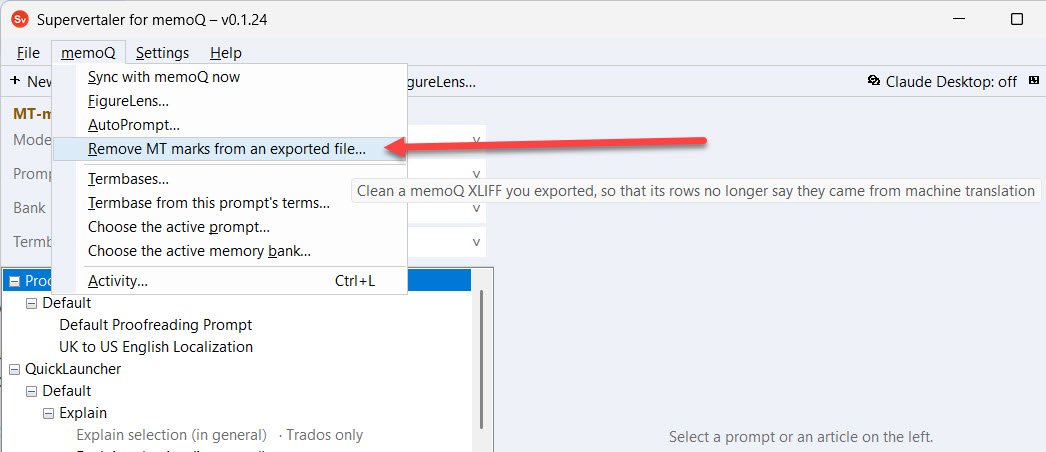
Clean. In the Supervertaler editor, choose memoQ → Remove MT marks from an exported file… and select the files you just exported. The editor writes a clean copy of each, under the same name, into a Clean folder beside them, and reports how many marks it removed and from which engines. The files you exported are not changed.
-
Remove the documents from the project. Back in Project home → Translations, select the same documents and remove them from the project.
-
Import the clean copies. Choose Documents → Import → Import with options, open the Clean folder and select every file in it (Ctrl+A). In the Document import options window the action must say Import as new. Click OK.
-
Check. Open a document and click a row: the Review tab no longer shows an Inserted match line.
The documents come back with the same internal IDs as before, so memoQ treats them as the same documents.
The report in step 2 repeats these steps; the ? in its title bar opens this page.
When you deliver the file itself
Some clients want the memoQ XLIFF back rather than the project. Then there is nothing to import: send the copy from the Clean folder. This works with a plain .mqxliff, exported without the skeleton, too.
Where it works
- Local projects: yes.
- Projects from a handoff package: the documents keep their IDs, so the return package should carry them back as usual. Try it once on a small job before relying on it.
- memoQ server (online) projects: no. A translator cannot remove documents from an online project, so the clean copies cannot take the originals’ place.