TermLens popup
The TermLens popup is a borderless floating version of the docked TermLens panel for the active segment. Designed for keyboard-only term selection on small screens – and for translators who want to insert terms without ever reaching for the mouse.
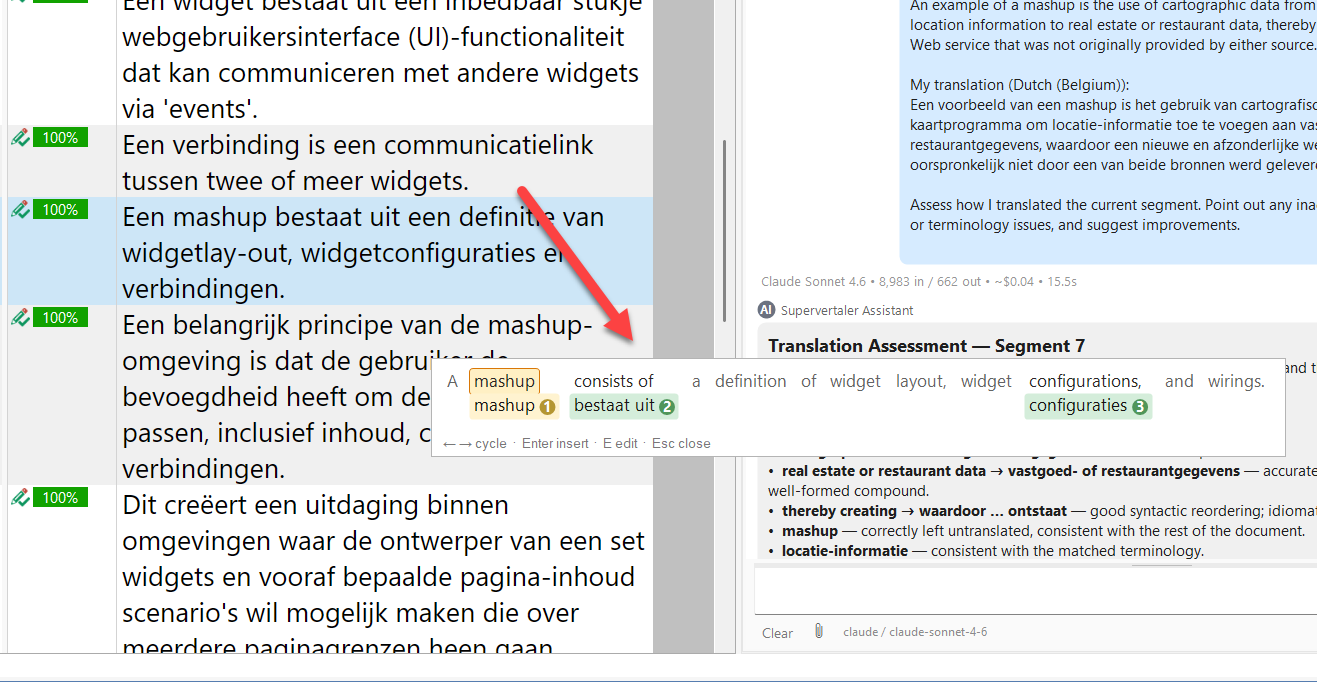
The TermLens popup with the current match highlighted (amber ring on the source word)
When to use it
- Small screens / laptops – keeping the docked TermLens panel always-visible can cost too much vertical space, especially for longer source sentences. The popup gives you the same view on demand and disappears when you’re done.
- Pure-keyboard workflows – Alt+L, cycle, Enter, back to typing. No mouse, no menu hunting.
Opening and closing
| Key | Action |
|---|---|
| Alt+L | Toggle the popup (open if closed, close if open) |
| Escape | Close without inserting |
| Click outside the popup | Close without inserting |
You can change the key in File → Options → Keyboard Shortcuts. (Earlier versions listed Ctrl+Alt+G; that key now belongs to AutoTagger.)
Was a Ctrl tap until this version. Pressing and releasing Ctrl on its own used to open the popup – a quick gesture, but not one Studio could tell apart from any other program’s Ctrl-modified shortcut once something else had consumed the middle key. The popup opened by itself for anyone running a keyboard tool, a text expander or voice commands alongside Studio. Alt+L is unambiguous. If you preferred the tap, note that Studio remembers per-user shortcuts, so an existing installation keeps whatever you already had bound.
Cycling between matches
When the popup opens, the first match has an amber ring around its source word – that is the current match that Enter will insert.
| Key | Action |
|---|---|
| Right / Down / Tab | Move the current-match highlight to the next match |
| Left / Up / Shift+Tab | Move it to the previous match |
Cycling wraps: from the last match, Right takes you back to the first.
Inserting
| Key / action | Result |
|---|---|
| Enter | Insert the current match into the target segment, close the popup, return focus to the target cell |
| Click any chip | Insert that match into the target segment, close the popup, return focus to the target cell |
Both paths share the same insertion logic – there is no difference between picking by keyboard and picking by mouse.
Editing a match
Press E while a match is highlighted to open the term-entry editor for that entry. The popup closes first so the editor opens with clean focus. The editor is the same dialogue the docked panel’s right-click “Edit Term…” menu uses, including the multi-termbase editing case for entries that exist in more than one termbase.
Visuals
The popup uses the same chip rendering, colour scheme, and metadata indicators as the docked TermLens panel – pink for project termbase terms, blue for regular Supervertaler terms, yellow for non-translatable, green for MultiTerm. See the TermLens overview for the full colour key.
TermLens popup vs TermPicker
Both show the same matches for the active segment. Pick whichever fits your style:
| TermLens popup (Alt+L) | TermPicker (Alt+P, or docked) | |
|---|---|---|
| Layout | Source segment with chips underneath each matched word | Sortable, scrollable table |
| Best for | Skimming matches in segment context | Many matches that benefit from sorting / typing-to-jump |
| Keyboard | Arrow / Tab cycles a highlighted match | 0–9 jumps directly; Up / Down navigate |
| Modality | Modeless – click outside to dismiss | Modal – Escape or Cancel to close |