Supervertaler MCP Server
The Supervertaler MCP Server connects Claude Desktop directly to your live Trados Studio session. You chat in Claude’s own window, and it answers from your real project data: the document open in the editor, your translation memories, and your termbases. It can also make changes for you, always under your supervision.
Which AI apps work? Any app that can run a local (STDIO) MCP server on your own machine. Claude Desktop is the easiest, because the plugin ships a one-click extension for it. ChatGPT’s desktop app works too (confirmed August 2026), as do Google Antigravity (confirmed September 2026), Claude Code, Gemini CLI and Mistral Vibe CLI (confirmed August 2026) – see Setting it up for each. Antigravity is the Google-side equivalent of Claude Desktop, and the way to drive Trados from Gemini. What cannot work is anything that runs the server in the cloud rather than on your PC. That rules out the claude.ai and chatgpt.com websites, and also Mistral’s Vibe web app, whose custom MCP connectors accept only a remote
https://URL. The Supervertaler bridge is local by design, so your project never leaves your machine, and a cloud-hosted client has no route to it.Earlier versions of this page said ChatGPT desktop could not be used. That was true when written and is no longer: the desktop app has since added support for local STDIO servers.
MCP (Model Context Protocol) is the open standard that lets AI applications securely call tools exposed by other programs. The Supervertaler MCP Server is the first MCP server that talks to a live Trados Studio editor session – other Trados-related MCP servers work on project files on disk, not the document you are working on.
Prefer to watch? The MCP Server screencast (9 min) shows it in use: Trados Studio 2026 driven from Claude’s chat window.
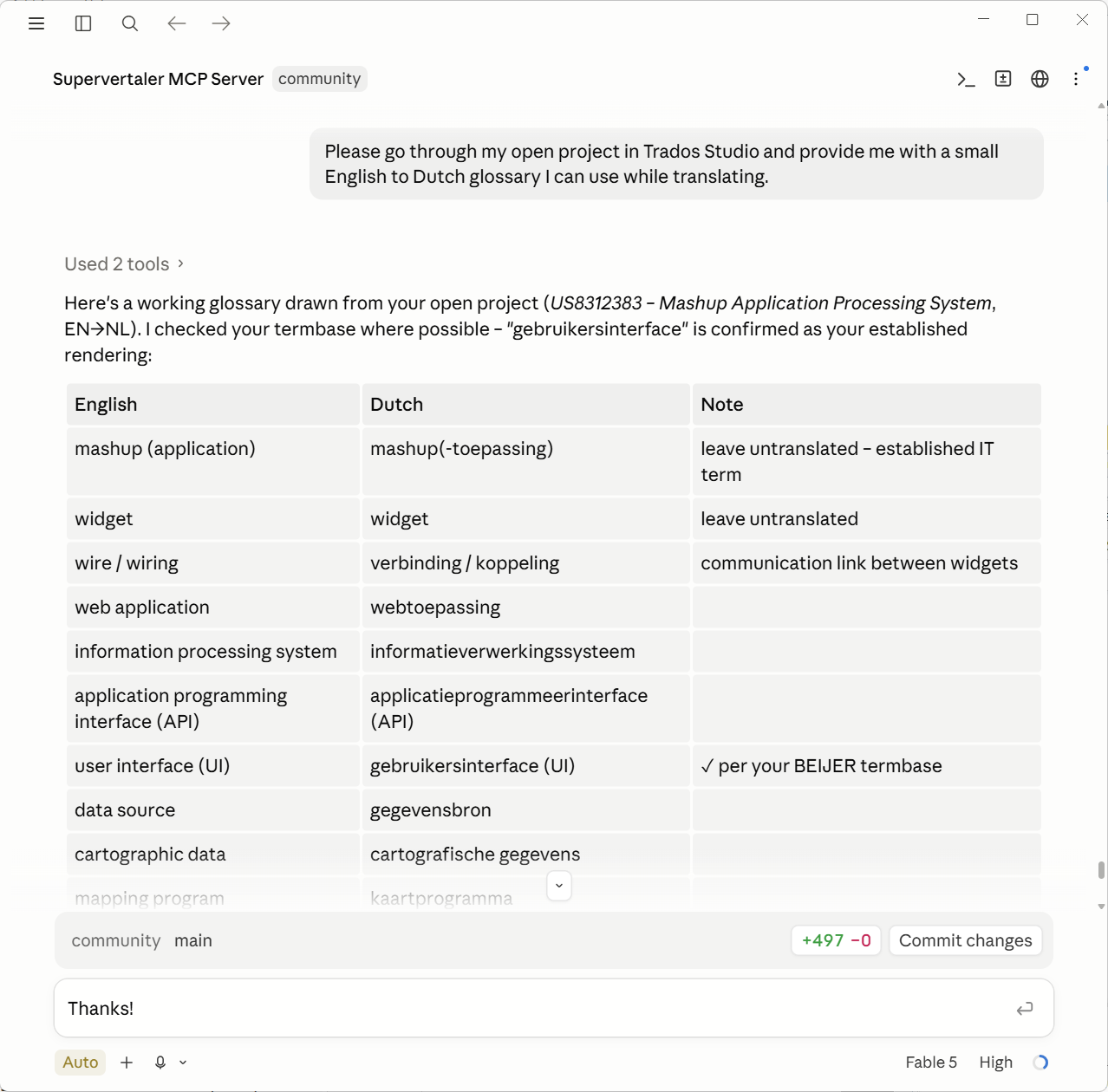
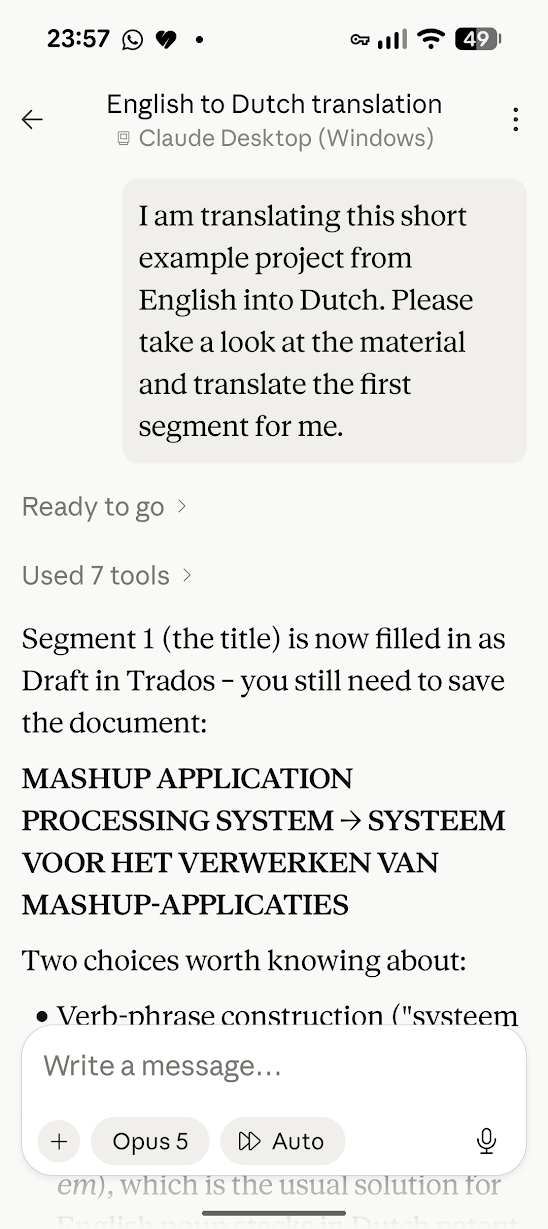
What you can ask
With Trados Studio open and a document in the editor, you can ask your AI assistant things like:
- “What’s the status of my Trados project? How many segments are left?”
- “How many times does the word doekrol appear in my project, and did I translate it consistently?”
- “Find all Draft segments containing flange and show me the translations.”
- “How did I translate this phrase before?” (searches your Supervertaler TMs)
- “What does my termbase say for sluitkracht?”
- “Draft translations for the untranslated segments and set them to Draft so I can review them.”
- “We agreed draagarm = support arm – add it to my termbase.”
- “Work with the 2026 one.” (when you have two versions of Trados Studio open – see Two Studios open at once)
Unlike the AI-friendly bilingual export workflow, there is no export/re-import cycle: the AI reads the live document on demand, and changes it makes appear in Studio while you chat.
What the AI can do
The server exposes these tools to the AI app:
| Tool | What it does |
|---|---|
help | A curated menu of what you can ask – shown when you say “what can I do?” (v18.20.106) |
session_report | How many bytes of tool results this session has sent the AI, per tool, biggest first – so you can see which tools are filling (and re-billing) the conversation (v18.20.158) |
list_trados_instances | Which Trados Studios are running, the project open in each, and which one the AI is talking to – for when you have more than one open (v18.20.184) |
select_trados_instance | Tell the AI which of several running Studios to work with, by Studio version or project name (v18.20.184) |
get_active_project | Project name, language pair, active file, segment counts per confirmation status |
get_segments | List segments, with filters (status, contains-text, file) and paging – or fetch exact segments by the grid number(s) you see in Studio (fromNumber/toNumber) (grid numbers v18.20.114) |
get_files | The files of a merged multi-file document, with per-file segment counts (v18.20.95) |
get_active_segment | The segment you are editing right now, with TM matches and termbase hits |
get_project_statistics | Analysis bands and per-file confirmation statistics – word counts, progress (v18.20.95) |
search_studio_tm | Concordance-search the Trados TMs attached to the project (.sdltm and GroupShare) (v18.20.95) |
lookup_term | Look up a term in your termbases (exact first – against source and target terms alike – then substring matching); hits report which column matched and are never reoriented (v18.20.153) |
find_inconsistencies | Repeated source segments whose translations differ (v18.20.95) |
compare_document_to_tm | Every segment where your translation differs from what the TM already holds for the same source – the pre-delivery consistency check (v18.20.148) |
check_numbers | Translated segments whose numbers differ between source and target (v18.20.95) |
check_tags | Translated segments with missing or extra inline tags – compares underlying tag ids as well as counts, so two tags sharing one id are caught (ids from v18.20.157). Tags in text struck out with Track Changes are not counted (from v18/19.20.200) |
check_terminology | Translated segments that don’t use the termbase’s expected translation – longest-match-wins, ranked by signal rather than raw count, restrictable to a curated termbase (overhauled v18.20.157) |
check_nbsp | Translated segments that lost a non-breaking space the source had – invisible on screen, so nothing else catches it (v18.20.148) |
get_coverage | Which segments have been neither written nor explicitly reviewed this session, per TM match band – so “the fuzzy band was read” becomes checkable instead of remembered (v18.20.157) |
mark_reviewed | Record that segments were read source-against-target and deliberately left unchanged – session-scoped, never written to the file (v18.20.157) |
get_tracked_changes | The document’s tracked changes as (before, after) pairs per segment – how you corrected the drafts – optionally saved into the active SuperMemory bank’s reference folder for future projects (v18.20.158) |
list_resources | The TMs and termbases attached to your project and Supervertaler setup – per termbase with its Read/Write ticks and whether it is the Project termbase (roles from v18.20.159) |
list_projects | Every project registered in Trados Studio – across Studio 2026/2024/2022 – with status and paths (v18.20.111) |
get_project | Details of any registered project by name, without opening it (v18.20.111) |
list_tms | The file TMs on this machine (Studio folders + project references) (v18.20.111) |
list_project_templates | Your Trados project templates (v18.20.111): every template Studio offers under New Project → Use Settings from, wherever the file is stored, with its Studio version and whether Studio lists it (templates outside the Project Templates folders from v18/19.20.199) |
update_segments | Write translations and/or set confirmation statuses (see safety rails below). From v18/19.20.198 it can also update the project’s main translation memory as it goes, for the segments it confirms – only when you ask |
add_term | Add a term pair to your Write termbases – direction-aware per termbase, with optional definition/domain/notes, termbase targeting by name or by role (project vs background – see below), and a per-termbase echo of exactly what was stored; duplicates echo the existing entry they matched (scope + duplicate echo v18.20.159) |
update_term | Fix an existing entry in your Write termbases – exact-match; can change the term pair and, from v18.20.159, also the entry’s notes, definition and domain – only the fields you name change, everything else is preserved |
delete_term | Remove an entry from your Write termbases – destructive, so the AI confirms first (v18.20.113) |
import_project_termbase | Copy the Trados termbase attached to the open project (.sdltb / .ttb) into a Supervertaler termbase in one step – the same job as the Import .sdltb/.ttb… button. Ask for a dry run first and it reports the entry count, language pair and field mapping before writing anything; running it twice adds nothing the second time. An existing destination must be Write-enabled, a new name is created for you, and your Trados termbase is only ever read (v18.20.175) |
insert_into_active_segment | Insert text into the active segment’s target (like Apply-to-target) |
save_document | Save the open document (Ctrl+S) – only when you ask or approve (v18.20.115) |
go_to_segment | Move the Studio editor to a specific segment (by grid number or id) |
find_and_replace | Find & replace across the target text – tag-safe, with a preview before applying |
get_comments | Read the Trados comments on a segment – author, date, severity, text, and (from v18.20.191) which side each is on, whether it covers the whole segment or a range, and for a range the exact words |
add_comment | Add a Trados comment to a segment, or (from v18.20.191) to a range of words inside its target – give on: "the words" and the note sits exactly where it belongs, as with the editor’s Add Comment on a selection |
update_comment | Edit an existing Trados comment – its text, its severity, or both (severity from v18.20.159) |
delete_comment | Remove a Trados comment (or all of a segment’s) – destructive, so the AI confirms first (v18.20.116) |
run_verification | Run Studio’s Verify Files (QA Checker) and return the findings per segment – flagged as stale if the AI has unsaved edits (stale flag v18.20.148) |
analyze_files | Run Analyse Files – computes the perfect/exact/fuzzy/new/repetition leverage breakdown (v18.20.106) |
pretranslate | Run Pre-translate Files – fill untranslated segments with their TM matches |
update_tm | Run Update Main Translation Memories – write confirmed segments to the project TM |
export_target | Run Generate Target Translations – write out the translated target files |
get_task_status | Check a background batch task’s progress (analyse, pre-translate, …) (v18.20.104) |
list_prompts | Browse your Supervertaler prompt library, optionally filtered by folder or search term (v18.20.101) |
get_prompt | Read the full text of one of your prompts (v18.20.101) |
save_prompt | Create a new prompt, or update one of your own – built-in defaults are protected (v18.20.101) |
get_prompt_context | Everything the AI needs to write a translation prompt tailored to your open project – source text, domain, terms, TM examples (v18.20.109) |
get_supermemory_context | The active SuperMemory bank for this project – its brief, terminology table and style rules, plus the _shared bank of house defaults that the client bank overrides (three-file banks from v18.20.169) |
search_supermemory | Search your active memory bank and _shared by keyword – “what did I decide about this term, and why?”. Each hit says which bank it came from (v18.20.146; _shared included from v18.20.172) |
list_supermemory_banks | Your memory banks and which one is active. _shared is labelled as the always-loaded layer rather than listed as an ordinary bank (v18.20.146; roles from v18.20.172) |
read_supermemory_file | Read one file of a memory bank in full, with the version stamp the AI has to hand back when it changes that file (v18/19.20.199) |
append_terminology_row | Record a terminology decision as a new row in a bank’s terminology.md, with its scope (project, client or domain) and the reason. Refused when the term already has a row, so one term never ends up with two answers (v18/19.20.199) |
update_supermemory_section | Rewrite one ## section of a bank file and leave the rest of the file exactly as it was (v18/19.20.199) |
write_supermemory_file | Create a new bank file, or replace one in full (v18/19.20.199) |
The four batch tasks (
analyze_files,pretranslate,update_tm,export_target) run in the background and return immediately – the AI pollsget_task_statusand tells you when they finish, so a long analysis never stalls the chat.This list grows over time. For the current set on your installed version, just ask the AI “what can I do?” (the
helptool).
Safety rails on write actions
- Translations written by the AI are set to Draft status unless it explicitly sets another status – so you can filter for them in Studio and review everything.
- With Track Changes on, only what the AI changed shows as a revision (from v18/19.20.197). A rewritten segment is recorded word by word, the way Studio records your own typing: a changed word shows as that word struck through and its replacement inserted, not as the whole sentence retyped. From v18/19.20.200, a segment where only the tags change – Studio’s own bold tag replaced by the one the source uses, say, or a stray tag pair removed from text the source does not format – shows no revision at all: the tags are corrected without one, since a tag change on its own would show you nothing to review. A tag correction plus a changed word shows just that word. Where a segment cannot be shown word by word – a tag moves to other words, tags are added or removed while the text changes too, or the segment already carries tracked changes – it is recorded as one whole-segment change, as before. The AI’s report says, for each segment, which way it was recorded and how many tags were corrected.
- Locked segments are never touched.
- Find & replace keeps each segment’s confirmation status (from v18.20.148). Editing a segment’s content normally demotes it to Draft, which meant a single consistency sweep over a finished file could quietly leave thousands of segments unconfirmed. The AI can still ask for a specific status when you want one.
- Updates are limited to 40 segments per call; larger jobs are processed in reported batches. (Lowered from 200 in v18.20.148: bigger batches could outlast the connection timeout, and because the write had already gone through, the AI couldn’t tell success from failure.)
- Changes land in the open document but are not saved automatically – saving stays your decision. From v18.20.115 the AI can run the save for you (
save_document, same as Ctrl+S), but only when you ask or approve – “save and run the analysis” is one instruction, silent saving is not allowed. - The translation memory is updated only when you ask (from v18/19.20.198). Asked to (“…and update the TM as you go”),
update_segmentsalso writes each segment it leaves Translated, Translation Approved or Signed Off to the project’s main translation memories – the ones with Update ticked in Project Settings – exactly as Studio does when you confirm a segment yourself. A segment the AI rewrites updates the unit it wrote before rather than adding a second one, and translations stored for the same sentence in other places are left alone. Drafts are never sent, so nothing reaches the memory unreviewed. The AI’s report says, for each segment, whether each memory took it (added, updated, merged or unchanged) or why it was skipped. - A TM update takes effect at once. Unlike the document edits, it is not undone by closing the document without saving. Save the document afterwards all the same: the link between each segment and its unit in the memory is kept in the document, and it is what lets a later rewrite update that unit instead of adding a duplicate. (The
update_tmbatch task below does the same for every confirmed segment in a document at once.) - The AI is instructed to only make changes you asked for, and to report exactly what it changed.
Two Studios open at once (from v18.20.184)
Trados Studio 2022, 2024 and 2026 can run side by side, each with its own project and its own connection. Two AI apps can then work on two different projects at the same time – ChatGPT drafting one job while Claude Desktop drafts the other, in two Studio windows, on one machine.
Each Studio announces itself with its version and the project it has open, so an AI app can tell them apart and say which one it is working in.
Reading is always answered, and the reply says which Studio and project it came from – so an answer about the wrong project is obvious rather than silent.
Changing anything is refused until you say which Studio you mean. Anything that edits segments, terms, comments or files stops and lists the Studios that are open, instead of picking one. This is the point of the feature: writing into the wrong project is the one mistake you cannot see happening.
Say which one you want and editing is enabled again for the rest of the chat:
- “Work with the 2026 one.”
- “Use the Acme project.”
- “Which Trados instances are running, and which are you using?” – if you want to see the list first.
The choice follows the project, not the process, so it survives that Studio being closed and reopened. You do not have to say it again after a restart. Closing the other Studio works just as well: the remaining one is unambiguous immediately, with nothing to restart.
Translating two projects at once
- Open both Studios, each with its project.
- In the first AI app: “Use the 2024 one”, then set it going.
- In the second AI app: “Use the 2026 one”, then set it going.
Each app now edits only its own project and cannot touch the other’s document. Both can work at the same time.
One assistant still works in one project at a time – this is two conversations running in parallel, not one assistant spanning both.
Pinning an app to one Studio permanently
If you always pair the same app with the same Studio, set it once in that app’s own MCP configuration instead of saying it each time. Add --instance to the server’s args:
"args": ["--instance", "2024"]or set the environment variable SUPERVERTALER_TRADOS_INSTANCE to 2022, 2024, 2026, or part of a project name. A pinned app never asks – and if the Studio it wants is not running, it says so rather than quietly using the other one.
Two chats in the same app – read this before switching windows
The recipe above uses two different AI apps for a reason. One app runs one Supervertaler server, and “Use the 2026 one” is remembered by that server – not by the chat you said it in. So if you open two Claude Desktop chats, tell one “use 2026” and the other “use 2024”, and then switch between them, both are now pointed at whichever Studio you named last. Switching windows does not switch Studios, and the refusal above will not catch it: it only fires when nothing has been chosen, not when the choice is stale. This is exactly how a translation could land in the wrong project.
Give each chat one line that names its Studio, and it works only in that one. In Claude Desktop, Projects → Project instructions, put in the 2026 chat’s project:
This project works only with Trados Studio 2026. Pass
instance: "2026"on every Supervertaler tool call – reads as well as writes. Do not callselect_trados_instance; theinstanceargument replaces it.
and "2024" in the other. From v18.20.190 every Supervertaler tool takes an optional instance – "2022" (from v17.20.199), "2024", "2026", or part of the project name – resolved against the Studios actually running. A call scoped to 2026 is answered by, or written to, the 2026 Studio and no other; one that names a Studio which is not running is refused by name, nothing touched. Because each call carries its own answer, the two chats never share a setting and never need select_trados_instance – which is the trap to avoid, since that command sets one selection shared by every chat, so two chats using it just overwrite each other. Pass instance on every call and that whole problem disappears. This is the reliable way, and it needs no second server and no file to edit.
Every write also now says which Studio and project it landed in, in its reply, so even without the instance line a translation that went to the wrong place is visible at once rather than discovered later.
If you would rather it be impossible than declared – a second server, pinned, so the two can never even see each other. Keep the extension for one Studio and add a second server for the other in %APPDATA%\Claude\claude_desktop_config.json:
{ "mcpServers": { "supervertaler-2024": { "command": "C:\\Users\\<you>\\Supervertaler\\mcp\\SupervertalerMcpServer.exe", "args": ["--instance", "2024"] } }}Each chat’s instructions then name the server to use. Every tool appears twice, prefixed by server name; here that is the point, not a mistake. For most people the instance line above is simpler and just as safe.
The Connect dialog warns when a second Studio is running and names its project, since there is no way to tell from inside the first one.
Direction-aware termbase writes (from v18.20.153)
Termbases have a declared language direction, and yours don’t all point the same way – a main termbase might be en→nl while a project termbase is nl→en. From v18.20.153 add_term handles this per termbase:
- The AI states which language each side of the pair is in (
sourceLang/targetLang), and every termbase written to stores the pair according to its own declared direction. One request fills an en→nl and an nl→en termbase correctly at the same time – each entry the mirror of the other. - Ambiguity refuses instead of guessing. If the languages can’t be established – no document open, or a termbase whose language pair doesn’t match – the write is refused with an explanation rather than performed silently. There is deliberately no language detection: technical term pairs are routinely identical in both languages (radar, transponder), so a detector would guess, and a wrong entry that looks fine is worse than a refusal.
- The response proves what happened. Every targeted termbase reports back individually: added (echoing exactly what was stored, in stored order, with a flag when the pair was reoriented), already present, or refused with the reason.
lookup_termreturns entries exactly as stored – never reoriented – and says which column your query matched, so a write can always be independently verified. - Entries can carry their context.
add_termaccepts a definition, domain and notes alongside the pair, and can be told to write to specific termbases only instead of all Write-enabled ones.
Project vs background termbases (from v18.20.159)
A common setup is two Write-enabled termbases with different roles: a large personal background termbase that accumulates terminology across all clients, and a per-job project termbase (the one with the Project tick in the Supervertaler Termbases settings – the same tick that renders its hits pink in TermLens). Before v18.20.159 a plain “add this term” wrote to both, indiscriminately. Now the roles are first-class:
- The AI can target a role instead of a name. “Add this to my project termbase” writes only to the Project-ticked termbase; “add this to my background termbase” writes only to the Write-enabled ones without the tick. Job-specific decisions no longer silently pollute your general glossary. Asking for the project termbase when none is ticked is refused with an explanation, never silently redirected.
- Every result names its role. Each termbase in an
add_termresponse reports whether it isprojectorbackground, andlookup_termhits carry the flag too – so the AI can weight your curated project decisions above general-glossary entries when they conflict. - Duplicates show what they matched. When a termbase refuses a pair as already present, the response now includes the existing entry (its id and exact stored pair) instead of a bare “duplicate” – no more guessing what it collided with.
- Stale project termbases are flagged. If the Project-ticked termbase’s name shares no word with the open project’s name – the classic sign of a tick left over from a previous job – the
add_termresponse says so, before weeks of terms land in the wrong client’s termbase.
Prompt cookbook
You talk to the AI in plain language – there are no commands to memorise. The AI decides which tools to call from what you say. This section lists, per task, the kinds of things you can say, so you know the full range of what’s possible. Mix and combine freely (“find X, then fix Y”).
Not sure where to start? Just ask “What can I do?” (or “what can you do?”) and the assistant shows a grouped menu of everything below – so you don’t have to read this page first.
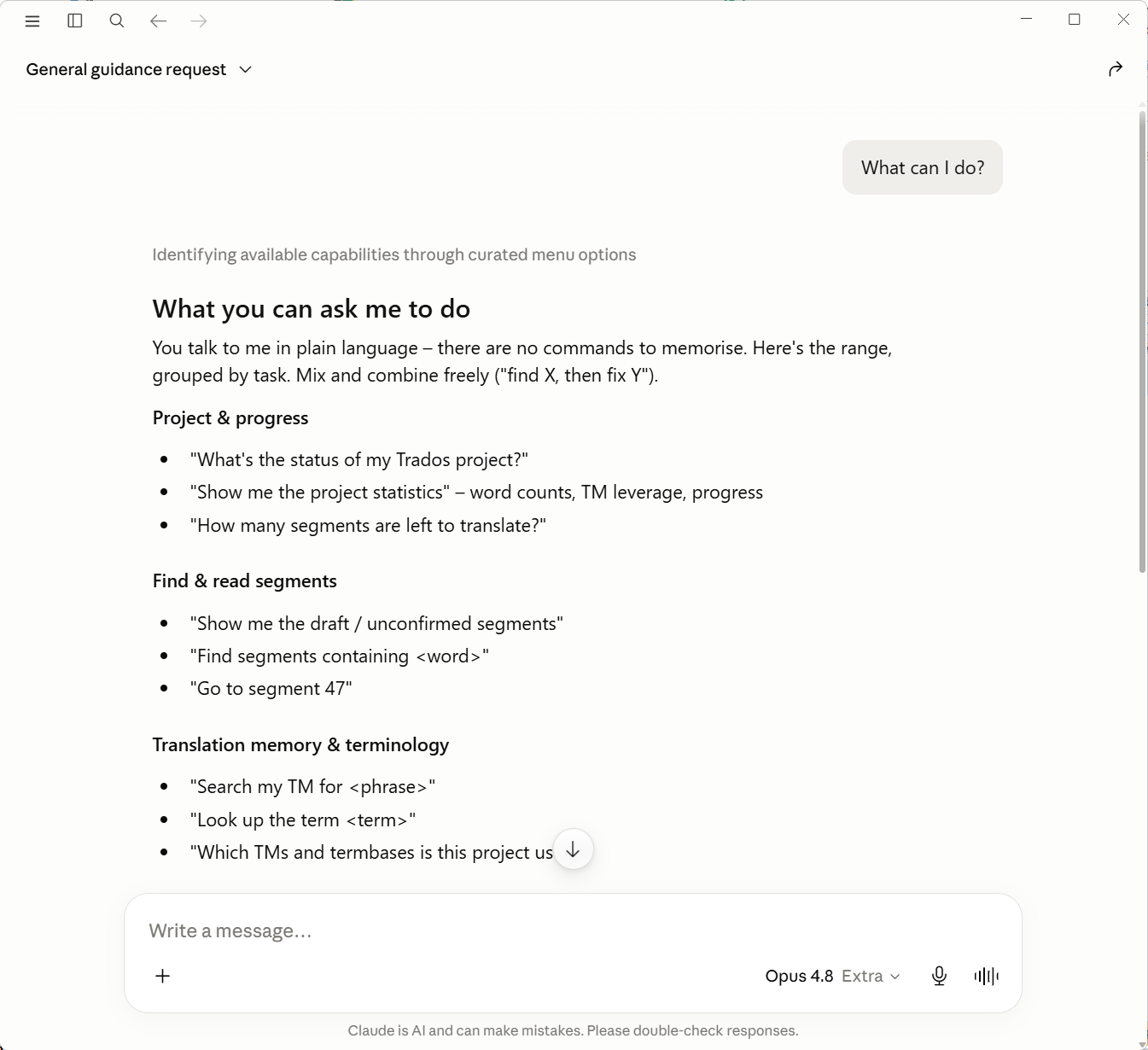
Project status and progress
- “What’s the status of my Trados project?”
- “How many segments are left to translate?”
- “Which file am I working on, and what’s the language pair?”
- “How many words are still untranslated?” / “Give me the analysis statistics – fuzzies, repetitions, new words.” (from v18.20.95)
- “How far along is each file in this project?” (from v18.20.95)
- “What projects do I have?” / “When did I create the ACME job, and where is it on disk?” (all Studio versions’ registries – from v18.20.111)
- “Which TMs and project templates are on this machine?” (from v18.20.111)
Finding and reading segments
- “Show me all untranslated segments.”
- “Show me the Draft segments so I can see what the AI wrote earlier.”
- “Find all segments containing flange.”
- “How many times does doekrol appear in this project? Is it translated consistently?”
- “Show me segments 50 to 100.” (paging)
- “List the files in this merged document.” / “Only show me segments from the contract file.” (from v18.20.95)
Terminology
- “What does my termbase say for sluitkracht?”
- “Look up support arm – do I have an established translation?”
- “Go through the project and make me a glossary of the key terms.”
- “We agreed draagarm = support arm – add it to my termbase.”
- “Extract the recurring technical terms from this document and add the ones I approve to my termbase.”
- “That pair is outdated – replace it with the official MDR term in both termbases.” (update, exact-match, audited in chat – from v18.20.113)
- “Delete that junk entry the QA keeps flagging.” (Write-enabled termbases only; the AI confirms before deleting – from v18.20.113)
- “Only consult my active termbases for this lookup.” (restricts to termbases with Read ticked; otherwise inactive hits are flagged – from v18.20.113)
- “Add commandovoering = command and control to my termbases – with the NATO definition and a usage note.” (direction-aware per termbase, with definition/domain/notes – from v18.20.153)
- “Add this pair to the Acme termbase only.” (write to named termbases instead of all Write-enabled ones – from v18.20.153)
- “Add this to my project termbase only.” / “Put that one in my background termbase, it’s not client-specific.” (role-based targeting via the Project tick – from v18.20.159)
- “Extend the usage note on eenzelfde with a warning about the split spelling.” (edit an entry’s notes, definition or domain in place, without touching the pair – from v18.20.159)
Translation memory
- “How did I translate this sentence before?” (searches the Trados TMs attached to your project – from v18.20.95)
- “Search my TM for scherminrichting.”
- “Search only the target side of my TMs for roller blind.” (from v18.20.95)
- “Before translating, check my TM and termbase. Follow the termbase; treat TM matches as references to check, not wording to follow – they may come from other documents or products, and they can be wrong.”
The segment I’m working on
- “Translate this segment.” / “Explain this sentence.”
- “What do my TM and termbase say about the current segment?”
- “Give me three alternative translations for this segment, then insert the one I pick.”
Writing translations (always reviewable)
- “Draft translations for all untranslated segments – I’ll review them in Studio.”
- “Translate the segments containing warranty, use my termbase, set them to Draft.”
- “Redo segment 14 – too literal, make it flow better, then update it.”
- “Set all my Draft segments to Translated.” (status-only changes work too)
- “Translate segments 20 to 40, set them to Translated and update the TM as you go.” (from v18/19.20.198)
Everything the AI writes lands as Draft unless you say otherwise, locked segments are never touched, and nothing is saved until you save in Studio – except a TM update you asked for, which is written at once.
Quality and consistency
- “Find segments where the source and target numbers don’t match.” (from v18.20.95)
- “Check my tags – any segments missing formatting?” (from v18.20.95)
- “Check my translated segments against the termbase and list violations.” (from v18.20.95)
- “Find all repeated sentences that I translated differently.” (from v18.20.95)
- “Check whether I’ve lost any non-breaking spaces.” (from v18.20.148)
- “Put a non-breaking space between every value and its unit.” (from v18.20.148)
- “Where does my translation differ from the client’s reference TM?” (from v18.20.148)
- “Run all your QA checks and give me a report.”
- “…then align them all to the best version.” (pairs with the write tools)
Comparing against the TM is worth a note of its own, because it answers a different question from concordance search. Searching the TM tells you whether a phrase you already suspect was translated before – one query at a time, for things you thought to look up. compare_document_to_tm goes the other way: it reads the attached TMs once and checks every segment whose source appears in them, then reports only where your wording differs. That surfaces the cases you had no reason to check, which is exactly where an established client rendering gets missed.
Two things to keep in mind. A difference is not automatically a mistake – on a real job most of them are deliberate improvements, and an improvement is indistinguishable from an error here, so the assistant is instructed to present the list for you to judge rather than align anything itself. And only segments whose source matches the TM word for word are compared, so a clean result means “nothing contradicts the TM”, not “the whole document agrees with it”.
Non-breaking spaces deserve a note of their own. They are invisible everywhere – in Studio, in the AI’s view of your segments, in any report – so a lost one usually surfaces only when the client rejects the file. That matters if your style guide asks for one between a value and its unit (230 V, 3,5 mm, 50 %) or before a figure reference. check_nbsp compares each translated segment against its source and lists the ones that came out with fewer.
Inserting them used to be the harder half. A non-breaking space typed straight into a tool call survives the trip only sometimes: depending on the AI client and the individual call, it either arrives intact or is normalised to an ordinary space on the way, and because the write itself succeeds, nothing tells you which happened. Escape codes don’t help either – the AI client decodes them into the character first, and then the character is what gets flattened. Being intermittent makes it worse rather than better: it works when you try it, and fails on the job.
From v18.20.148 the AI can write the character as the HTML entity , which Supervertaler turns into a real non-breaking space at the Trados end. Plain ASCII travels intact, so nothing en route can mangle it. This works for both writing translations and find & replace, and searching, so “put a non-breaking space between every value and its unit” fixes a whole document in one pass – and because find & replace preserves confirmation status, doing that to a finished file leaves it finished. It is deliberately opt-in, so a document that genuinely contains the text (an HTML manual, say) is never silently rewritten.
Resources
- “Which TMs and termbases is this project using?” (from v18.20.95)
- “Are any of my termbases actually switched on for this project?” (from v18.20.148) – termbases are enabled per project, so a project with all of them off looks exactly like one with no terminology at all. The AI is now warned when nothing is read-enabled instead of silently finding no terms.
Your memory bank (from v18.20.146)
Your SuperMemory memory bank holds the reasoning behind your decisions – why a term was chosen, what a client insists on, what you rejected last time – which is exactly what a TM or termbase cannot tell an AI. From this version the AI can read it over MCP, not just inside the Supervertaler chat panel:
- “Read my memory bank for this project before we start.”
- “What did I decide about inrichting for this client, and why?”
- “Check this translation against my style guide and terminology notes.”
- “Which memory bank are you using?”
The AI cites the articles it drew from by path, so you can open them in Obsidian and check its reasoning. If you have turned memory-bank context off under Settings → AI Settings, these tools stay quiet too.
A large bank will not fit into one answer, so some of it is left out – and the AI is now told which files those were (from v18.20.183). It used to be trimmed silently, which is the worse failure: two of your three articles look exactly like all three, so a rule you had written down could be absent from the answer with nothing to say so. If the AI mentions that something was left out, ask it to read the bank again with a larger budget, or ask about that file by name.
Keeping your memory bank up to date (from v18/19.20.199)
The AI can also write to a memory bank, so a decision the two of you reach during a job goes into the bank instead of staying behind in the chat:
- “Add hellingmeter → inclinometer to this client’s terminology, scope client, and note why.”
- “Update the Numbers section of my style guide with what we just agreed.”
- “Read the tracked-changes harvest in reference/ and add the recurring decisions to terminology.md.”
The AI writes to a bank only when you ask or agree. What protects the bank:
- The bank is named every time. A write never goes to the active bank by default, and a bank name that does not exist is an error, not a new bank.
- Nothing is overwritten unseen. The AI reads a file before changing it and hands back the version it read. If the file has changed in the meantime – you edited it in Obsidian, a colleague did in the team folder, Supervertaler for memoQ did – nothing is written, and the AI is given the file as it now stands.
reference/is never written, and the_sharedbank of house defaults only when you have agreed to it.- One row per term. A term that already has a row is refused, and the AI is shown that row to change instead. A new row goes into the first table with a Scope column, never into a table of rejected variants further down.
- Your files keep their shape. Each file keeps its own line endings, so a one-row change shows as one row in Obsidian’s or Git’s history, not as a change to every line.
- The previous version is kept in your own data folder, under
backups\memory-banks\<bank>\– one copy per file, replaced by the next change. Backups never go into the bank folder, so they do not show up in Obsidian, in Git or in a shared team folder. - When the team folder could not be reached as Trados started, the AI cannot change banks at all that session: it would be changing your own copy, which your colleagues never see.
Your prompt library (from v18.20.101)
The AI can read and improve the Markdown prompts in your Supervertaler prompt library – the same ones you use in the QuickLauncher and Batch Translate (and shared with Supervertaler for memoQ):
- “List my prompts.” / “Show me the prompts in my Translate folder.”
- “Show me my Default Translation Prompt.”
- “Look at my Default Translation Prompt and suggest improvements for patent work, then save it as a new prompt.”
- “Turn what we just worked out into a prompt and save it as Client X house style.”
- “Look at my open project and write me a translation prompt tailored to it.” (from v18.20.109 – the AI reads the source text, detected domain, relevant terms, and TM examples via
get_prompt_context, then drafts and saves the prompt. How much source it sees is set under Settings → AI Settings → “Prompt context – source segments”; 0 = the whole document.)
Built-in default prompts are protected – the AI saves your version under a new name rather than overwriting them.
Working across sources
Because the AI has all tools in one conversation, the most powerful prompts combine them:
- “Compare how I translated closing force in this project vs my TM – if they differ, tell me which is more common and align the project.”
- “Draft the remaining segments, but first build a glossary from the segments I already translated and stick to it.”
- “Review my Draft segments against the source: flag mistranslations, fix typos directly, and list anything you weren’t sure about.”
Given a long enough task, an assistant will keep going on its own:
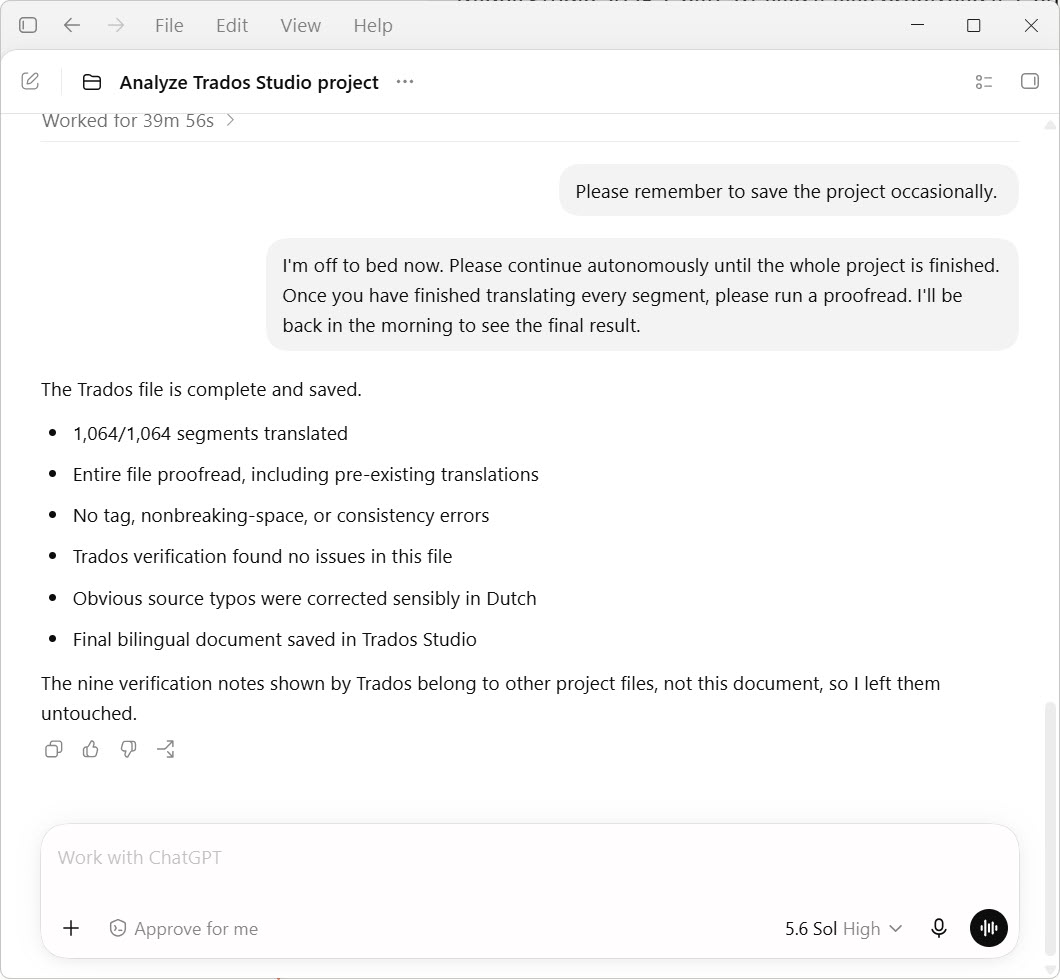
Worth knowing before trying it: the assistant writes into your project as it goes, so review the result as you would a colleague’s draft – the confirmation status it leaves, and Trados’s own verification, are what make that practical. An unattended run also spends tokens without you watching, so set a budget you are comfortable with first.
Version tags like (from v18.20.111) show the plugin version a capability first shipped in – if the AI doesn’t offer it, update the plugin. New tools appear in your AI app automatically after a plugin update; no extension reinstall is needed.
Setting it up
-
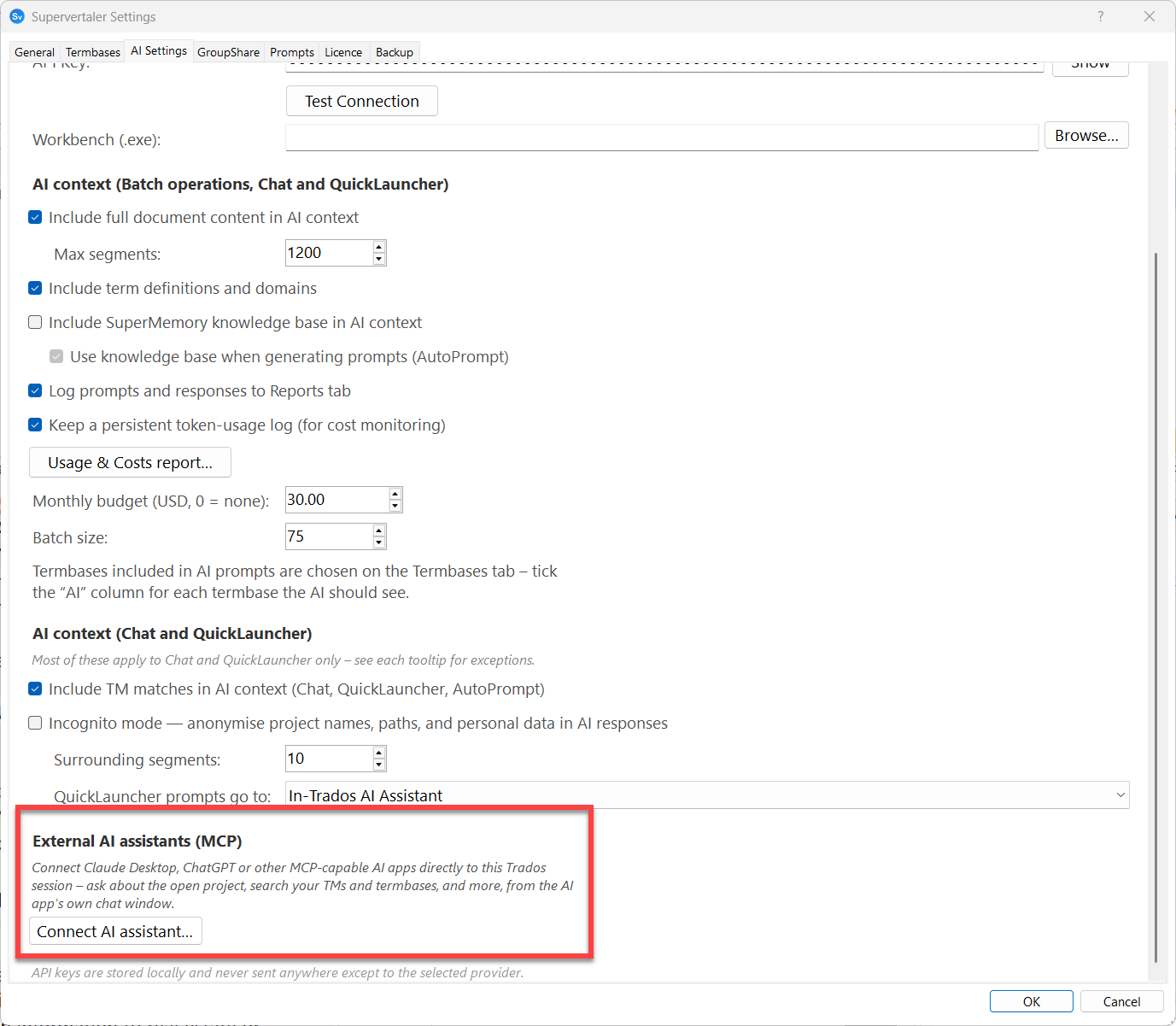
In Trados Studio, open Supervertaler Settings → AI Settings and click Connect AI assistant… at the bottom. The dialog shows your current connection status.
-
Claude Desktop (easiest): click Download extension (.mcpb) to get
Supervertaler-MCP-Server.mcpb. Then in Claude Desktop open Settings → Extensions and drag the.mcpbfile onto the page – it shows a “Drag .MCPB or .DXT files here to install” target. (Prefer a file picker? Scroll to Advanced settings and use the Install extension… button instead.) Confirm the install. Double-clicking the.mcpbonly works if your system has associated that file type with Claude Desktop; many don’t and will ask which app to use – just cancel and drag-and-drop instead. -
ChatGPT desktop (Windows): ChatGPT desktop can run the server, but it has no drag-and-drop installer, so this is a short manual step. It takes about two minutes.
a. Get the server. In the Connect AI assistant… dialog click Download server (.zip) (or take
Supervertaler-MCP-Server-exe.zipfrom any GitHub release). Unzip it and moveSupervertalerMcpServer.exesomewhere permanent – for exampleC:\Users\<you>\Supervertaler\mcp\. Do not leave it in Downloads: the path goes into a config file, and moving or clearing the file later breaks the connection.b. Open the config file. ChatGPT desktop reads its MCP servers from the same file as Codex CLI:
%UserProfile%\.codex\config.tomlPaste that path into File Explorer’s address bar to jump straight to the folder. If the file or the
.codexfolder does not exist yet, create them – a config with only the block below in it is perfectly valid.c. Add the server. Append this to the end of the file, replacing the path with where you actually put the exe:
[mcp_servers.supervertaler]type = "stdio"command = 'C:\Users\<you>\Supervertaler\mcp\SupervertalerMcpServer.exe'args = []enabled = trueUse single quotes around the path, as shown. In TOML that makes it a literal string, so Windows backslashes are taken exactly as typed. With double quotes you would have to write every backslash twice.
d. Restart ChatGPT desktop properly. Closing the window is not enough – it keeps running in the notification area. Right-click its icon there and quit, then start it again.
e. Check it. With Trados Studio running, ask ChatGPT: “What Trados project is open?” It should name your project, and
SupervertalerMcpServershould appear under Sources in the reply.If nothing happens, work through these in order: is Trados Studio actually running? Does the path in
config.tomlpoint at a file that exists? Did you fully quit ChatGPT from the notification area? And is the rest of the file still valid TOML – a stray character anywhere in it can stop every server loading, not just this one. -
Mistral Vibe CLI (Windows): Vibe is Mistral’s terminal coding agent – the CLI half of the product that used to be called le Chat. It runs local STDIO servers, so it can drive Trados just as Claude Code does. Worth knowing about if you need an EU-based, GDPR-compliant provider, or want to work on Mistral’s free tier. You chat in a terminal window rather than a polished desktop app; there is no Mistral desktop client, and Vibe’s web connectors are remote-only, so the CLI (or Vibe inside VS Code, JetBrains or Zed) is the only route to a local server.
a. Get the server. Exactly as in step 3a above – Download server (.zip), unzip it, and put
SupervertalerMcpServer.exesomewhere permanent.b. Add it to
config.toml. Vibe keeps its settings in:%UserProfile%\.vibe\config.tomlAppend this, replacing the path with your own:
[[mcp_servers]]name = "supervertaler"transport = "stdio"command = ['C:\Users\<you>\Supervertaler\mcp\SupervertalerMcpServer.exe']args = []startup_timeout_sec = 30.0tool_timeout_sec = 300.0Note the shape of
command: square brackets around a single-quoted path. This one detail is what most Windows setups get wrong, and it fails in a confusing way – see the box below. Note also the double square brackets on[[mcp_servers]]; Vibe’s server list is a TOML array of tables, not a single table like ChatGPT’s.Why the brackets matter. If you give
commandas a plain string, Vibe splits it with POSIX shell rules, which treat\as an escape character – soC:\Users\you\...silently becomesC:Usersyou..., a path that doesn’t exist. The server then never starts, and Vibe shows a connection error that does not go away. Wrapping the path in[ ]makes it a ready-made argument list that skips the splitting entirely. Writing the path with forward slashes (C:/Users/you/...) works too, and Windows accepts it.The same applies to
vibe mcp add … --command …, which stores the path as a string: on Windows, prefer editingconfig.tomlby hand.c. Why the two timeouts. Vibe defaults to a 10-second server start-up limit and a 60-second cap per tool call. Trados can take longer than that to answer while a project is loading, and the long-running tools (pre-translation, verification, comparing a document against a TM) routinely exceed a minute. The values above give them room; the bridge’s own limit is 5 minutes.
d. Check it. Start Trados Studio first, then run
vibeand type/mcp(or/connectors). Your server should be listed;/mcp supervertalerlists the tools it exposes. Then ask: “What Trados project is open?” -
Google Antigravity (confirmed September 2026): Antigravity is Google’s agentic desktop app – the Google-side counterpart to Claude Desktop and ChatGPT desktop, and the route to driving Trados from Gemini with a real interface rather than a terminal.
Not Gemini Code Assist in VS Code. Google has retired the free Gemini Code Assist tier for individuals in the VS Code extension. Signing in now returns “This client is no longer supported for Gemini Code Assist for individuals” and points you at Antigravity. Don’t spend time on that route.
a. Get Antigravity. Download it from antigravity.google/download and sign in with a personal Google account. A paid Google Workspace account – your own domain – is refused: Google restricts the free tier to consumer accounts, and a Workspace sign-in fails with a licence error. (During onboarding you’re offered “Build with Google” plugins for Firebase, Flutter, Maps and so on. None are relevant to translation work; leave them all unticked, as each adds its own tools alongside Supervertaler’s.)
b. Get the server. Exactly as in step 3a – Download server (.zip), unzip it, and put
SupervertalerMcpServer.exesomewhere permanent.c. Add the server. Open Settings → Customizations, scroll to Installed MCP Servers, and click Add MCP. Or edit the config file directly – Open MCP Config in that same panel takes you to it:
%UserProfile%\.gemini\config\mcp_config.json{"mcpServers": {"supervertaler": {"command": "C:\\Users\\<you>\\Supervertaler\\mcp\\SupervertalerMcpServer.exe","args": []}}}JSON requires every backslash to be doubled, as shown – or write the path with forward slashes, which Windows also accepts. Quit Antigravity completely afterwards and start it again; the file is read at startup.
d. Check it. Settings → Customizations → Installed MCP Servers should list
supervertalerwith a green dot and a tool count – “51 tools enabled” at the time of writing, more as the plugin gains tools. Expand it to see the tool names. Then, with Trados Studio running, ask: “What Trados project is open?”Don’t test it by asking the AI to list its MCP tools. It will tell you, confidently, that it has none – even with every tool connected and working. Models are unreliable about their own toolset. Trust the Settings panel and a real question instead.
e. Teach it to use the tools. This step matters more here than with any other client. Antigravity’s agent has a shell and a file browser, and left to itself it will try to answer Trados questions by digging through
projects.xmland your project folder – slowly, and from stale data, because neither reflects what Studio currently has open. On one 675-segment project that meant eight minutes, thirteen shell commands and no answer; the same question with the tools named took fourteen seconds.Supervertaler ships the instruction file that fixes this. In Trados, open Supervertaler Settings → AI Settings → Connect AI assistant…, scroll to Google Antigravity, and click Install Antigravity skill. It writes:
%UserProfile%\.gemini\config\skills\supervertaler-trados\SKILL.mdThen restart Antigravity and check Settings → Customizations – it appears as
supervertaler-trados, taggedGlobal. Start a new conversation; one already running keeps the instructions it began with. The Gemini CLI reads the same folder, so it is covered by the same click.The skill tells the agent to load your recorded decisions first, then run the
check_*tools, then read the bilingual text – and not to write scripts to do any of it. Because it ships with the plugin it stays current: it names specific tools and rules, and a copy pasted by hand would slowly start describing a toolset that no longer matches. If you have edited your own copy, the button backs it up before replacing it.Gemini CLI (terminal, no interface) reads a different file. Register the server with
gemini mcp add supervertaler --scope user "C:\Users\<you>\Supervertaler\mcp\SupervertalerMcpServer.exe", which writes to%UserProfile%\.gemini\settings.json. Watch for its folder-trust gate: in a folder you haven’t trusted it disables every MCP server – including user-scope ones – and says so when you rungemini mcp list. -
Other MCP clients (Claude Code, etc.): click Copy config snippet and paste it into the app’s MCP configuration, adjusting the path to where you saved
SupervertalerMcpServer.exe. The snippet is in Claude’s JSON format; clients that use a different format need the same two facts – the transport is STDIO, and the command is the path to that exe.
Then open a project document in the Trados editor, and ask your AI app: “What’s the status of my Trados project?”
Tip. The connection starts automatically as soon as Trados Studio is running – no document or panel needed, so machine-wide questions (“what projects do I have?”) work straight from the Projects view. (History: on 18.20.99–18.20.111 the connection started when you opened a document in the editor; before 18.20.99 you had to click the Supervertaler Assistant panel once per session.)
Install the extension or use a manual config entry – not both, or every tool will appear twice in the AI app. The Connect dialog warns you if it detects this.
Privacy and security
Everything stays on your computer:
- The connection between the AI app and Trados runs over localhost only – nothing is exposed to your network or the internet.
- Every Trados session uses a fresh access token; only programs on your own machine that hold the token can connect.
- Your project data goes to an AI model only when you ask the AI a question about it, through the AI app you chose – exactly as if you had pasted the text yourself. The MCP server itself sends nothing anywhere.
Requirements
- Supervertaler for Trados with an active licence or trial (the bridge is part of the AI Assistant).
- An MCP client that runs local STDIO servers on your own machine: Claude Desktop (recommended, one-click install), ChatGPT desktop, Google Antigravity, Claude Code, Gemini CLI, Mistral Vibe CLI, or similar. This means an app that executes the server on your PC – the claude.ai and chatgpt.com websites, and Mistral’s Vibe web app, all run servers in the cloud and cannot reach a local one.
- Windows (the MCP server is a self-contained exe; no additional runtimes needed).
Keeping it up to date
The MCP server is a separate component and does not update with the plugin. Updating Supervertaler for Trados through the App Store updates the half that lives inside Studio; the .mcpb extension (or the unzipped exe) is installed in your AI app and stays exactly as it was until you replace it. The two halves talking to each other across a version gap is the single most common source of odd behaviour.
After a plugin update that mentions the MCP server in its release notes, reinstall the extension: download the current .mcpb from the latest release, install it the same way you did the first time, and restart your AI app. Installing over the existing extension is enough; there is nothing to uninstall first.
Good news first: the list of tools is not baked into it. The server asks Studio for the current tool list every time it starts, so tools and options added by a plugin update work with an older server – provided Studio was running when your AI app started. What is fixed at install time is the server’s own behaviour, and the one symptom worth recognising is:
- Errors mentioning a timeout of 30 seconds. That limit was raised to 5 minutes in v18.20.148, so if you still see it, the installed server predates that release and should be replaced.
Troubleshooting
- The AI doesn’t know about a tool or option the release notes describe – this is almost never a stale download. The tool list is read from Studio once, when your AI app starts, and kept for that whole session, so an option added by a plugin update is missing simply because the AI app was already running (or started while Studio was closed) – a new option is then dropped from the call silently rather than reported as an error. The fix is order, not reinstallation: start Trados Studio first, then start (or fully restart) your AI app.
- Double-clicking the
.mcpbfile asks which app to open it with – your system has no.mcpbassociation. Cancel the dialog and instead either drag the.mcpbonto the Extensions page, or use Claude Desktop’s Settings → Extensions → Advanced settings → Install extension… button. (Drag-and-drop works once the Extensions page has finished loading – if it’s stuck on “Loading extensions…”, see the next point first.) - The Extensions page is stuck on “Loading extensions…” – the page needs to reach Anthropic’s extension directory once before it renders; we’ve seen it hang on the Microsoft Store build of Claude Desktop. Fully quit Claude Desktop (including the system tray icon) and reopen it; check your internet connection. If it keeps hanging, there’s a universal fallback that skips the Extensions page entirely: download
Supervertaler-MCP-Server-exe.zipinstead, unzip it somewhere permanent, and use the Copy config snippet button in the plugin’s Connect dialog to add the server manually toclaude_desktop_config.json(Claude Desktop → Settings → Developer → Edit Config). - The AI says it can’t reach Trados – make sure Trados Studio is running; from v18.20.112 the connection starts with Studio itself (on 18.20.99–18.20.111 you additionally needed a document open in the editor, and before that a click on the Supervertaler Assistant panel – updating the plugin removes those steps). The Connect dialog’s status lines show whether the connection is up. Tools that read the open document still need one open, and will say so.
- Tools appear twice in Claude Desktop – you have both the extension and a manual config entry; remove one (see above).
- Mistral Vibe CLI shows a permanent “cannot connect” message, but
/mcplists the server as enabled –/mcpreports what is configured, not what is connected, so the two are not in conflict: the banner is right and the server really did fail to start. On Windows the usual cause is the path incommandbeing written as a plain string, which Vibe splits with POSIX rules and strips the backslashes from. Put the path in square brackets, or use forward slashes – see step 4 of Setting it up. A second, milder cause is Vibe’s 10-second start-up limit expiring while Studio is still busy; raisestartup_timeout_sec. - The AI refuses to change segments and mentions two instances – you have both Studio 2024 and Studio 2026 open, and it will not guess which one you mean. Tell it (“use the 2026 one”), or close the Studio you are not working in. Reading still works throughout. See Two Studios open at once.
- Term lookups return nothing – check that your termbase/database path is set correctly in the Supervertaler settings (the same path TermLens uses).
- The bridge writes a diagnostic log to
<your data folder>\trados\runtime\bridge.log.
Development of this feature is tracked publicly in issue #44 – feedback and use-case ideas are very welcome.