QuickTrans
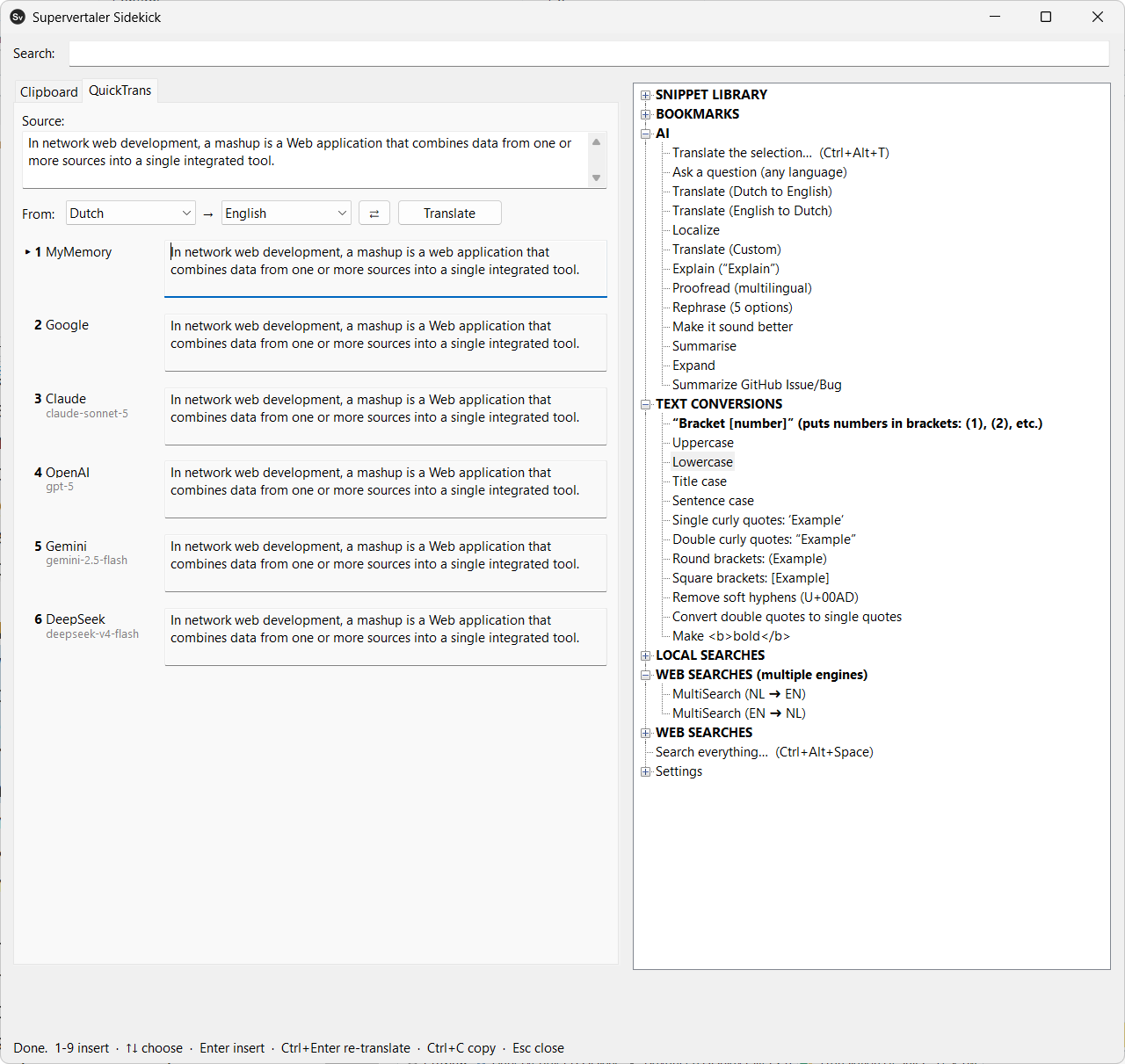
QuickTrans translates the selection with several engines at once and shows the answers side by side. Select a sentence in any application, press Ctrl+Alt+T, and pick the version you like.
It is a tab of the main window, so the menu stays beside the translations: translate something, insert it, then run a menu action without changing windows.
Engines
Machine translation: MyMemory, Google, Microsoft, ModernMT and DeepL.
LLMs: Claude, OpenAI, Gemini, Mistral, DeepSeek, OpenRouter, a local Ollama, and any custom OpenAI-compatible endpoint you point it at.
Every engine is asked at the same time, and each answer appears as it lands, so nothing waits for the slowest. MyMemory needs no key, so QuickTrans does something useful before anything is configured; the rest read their key from the shared key file and are skipped silently when it is missing. See Installation → Add API keys.
Using it
| Key | Does |
|---|---|
1–9 | insert that translation into the window you came from |
Ctrl+Enter | translate again (after editing the source text or changing a language) |
Ctrl+Shift+Enter | ask the AI engines |
Ctrl+C | copy the selected translation |
Esc | close |
The From and To dropdowns set the language pair for the whole program – the searches read it too – and the choice is remembered in settings.ini. The ⇄ button swaps the direction.
Machine translation first, AI when you ask
The machine-translation engines answer straight away and cost nothing or next to nothing. The LLMs are slower and metered. By default QuickTrans asks all of them with every translation; once you have several LLMs enabled that means every selection queries all of them.
Set AutoFetchAI=0 under [QuickTrans] in settings.ini and the AI engines wait for Ctrl+Shift+Enter instead – you only pay for an LLM when the free answers were not good enough.
Choosing models
Open Settings → AI providers & keys… to switch engines on and off and to choose a model for each. The Models button asks that provider what your key can actually use, since availability differs by account.
For one-sentence translation the small models are the sensible choice – as good as the flagship at this job, several times faster and far cheaper, and you are paying several engines at once.
Local and custom endpoints
Ollama defaults to http://localhost:11434/v1. A custom endpoint stays off until you give it a URL and a model name. Most custom endpoints are MT proxies rather than instruction-following models – they translate whatever they are sent, so a wrapped prompt comes back with the instructions translated too. custom_raw=1, the default, sends the bare text with the language direction in the system message; set it to 0 if yours really is an LLM.